
AI computer use with live view and human takeover
Choose between app APIs, browser tools and a cloud computer, then design visible agent work with separate watch access, human takeover and explicit recovery.
By Weavz Team
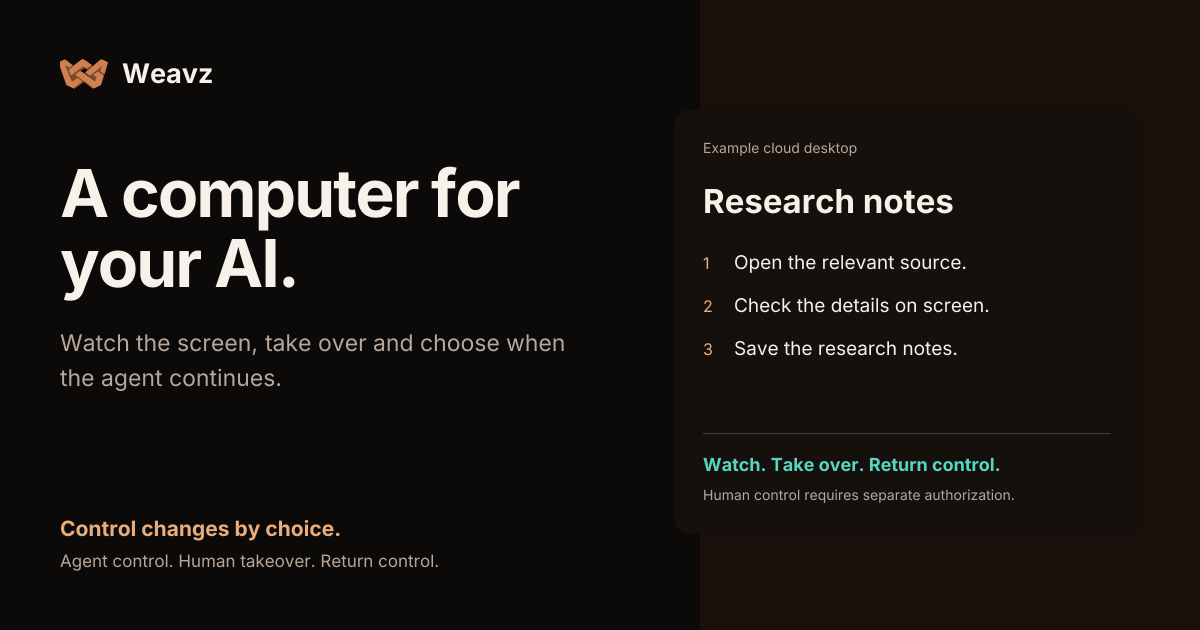
A useful computer-using agent needs more than a click tool. A person needs to see what is happening, step in when the agent gets stuck and know whether the agent can continue afterward.
Weavz Computer Control provides a cloud desktop that an agent can operate through MCP. An authorized person can watch, take over and explicitly return control. Your AI client or application supplies the agent. Weavz provides the desktop and its tools.
Choose the smallest surface that fits the task
Use an app integration when the work has a supported API action. Retrieving a CRM record or creating an issue through the app's integration usually avoids the uncertainty of navigating its visual interface.
Use Agent Browser when the task is mainly web navigation and page structure. Use Computer Control when the work needs a visible desktop, browser, files and terminal together. A computation that needs no visible application may fit Sandbox instead.
Computer Control is a cloud Linux computer. It does not give an agent access to the reader's personal device. It supports public HTTP and HTTPS access; private network addresses and other network protocols are outside the initial supported access model.
Design the control handoff before the happy path
The normal flow is:
Start → Agent control → Human takeover → Return control → Agent control → End
While the agent works, it can inspect the screen and use mouse, keyboard, file and terminal actions. A watch link lets a person view the session without granting control.
Taking over requires separate authorization. When a person selects Take over, running agent commands are interrupted before human input is accepted. The agent cannot grant itself that human capability.
When the person is ready, Return control lets the agent continue. Completed actions remain completed: takeover does not undo a submitted form, a sent message or a file change. Check the visible state before continuing.
A disconnect is a paused session
Closing the controller or losing its connection must not silently hand the computer back to the agent. In Weavz, the session stays paused after a controller disconnect or lease expiry. An authorized person takes control again, inspects the screen and explicitly returns control.
That distinction matters during authentication and recovery. A person may be halfway through a sign-in prompt or correcting the agent's navigation. Connection loss does not mean the task is ready to resume.
The live viewer should show who controls the computer and make connection or checkpoint failures visible. An agent's resume action checks whether control was returned; it cannot override a person or a paused session.
Embed the viewer for your product's users
For a product integration, keep access issuance on your trusted backend. Authenticate the person, authorize their access to the particular session and request short-lived watch or control access through the Computer access API.
Render the returned viewer privately for that person. The backend can specify the exact HTTPS origin allowed to embed it. Preserve the returned URL fragment when opening the viewer, and request fresh access through the backend after expiry.
A control link is a credential. Keep it out of model prompts, tool results and analytics logs. An ordinary MCP token cannot mint human control links. The fact that a backend holds an API key does not establish which of its own customers should receive access; that check belongs in the application.
Clients differ in their support for embedded interfaces. MCP Apps provides an extension for interactive UI in compatible hosts. A separately authorized viewer link remains a distinct access surface; do not assume every MCP client renders the same UI or grants the same capabilities.
Save outputs deliberately and end the computer
Save durable results under /workspace. A successful checkpoint can restore those files for the same end user and configured alias. Browser sign-ins, open applications, running programs and unsaved work are discarded when the session ends.
Checkpoints currently allow up to 256 regular files, 8 MiB total and 1 MiB per file. A failed checkpoint retains the last good saved state; it does not establish that the newest output was saved. Ending the session still stops compute.
Sessions reserve prepaid Sandbox capacity. The default duration is up to ten minutes, adjusted to available time, with a maximum of thirty minutes and two concurrent sessions per organization. Watching alone does not prevent an idle shutdown. Unlimited connected accounts and MCP Workspaces do not imply unlimited computer time; check current plan limits.
Use the Computer Control guide for setup, MCP actions and an SDK embedding example. Start with one bounded task, a visible result and a handoff that is as deliberate as the agent's next click.
Share this article
Send it to a teammate or save the link for later.